

I seem to have been posting much on the subject of note-taking as of late. It’s the seasonal thing. 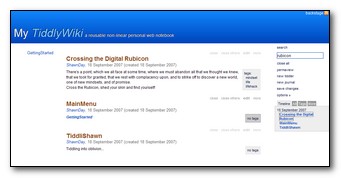
What I suddenly realized amongst my plaudits for techniques and for tools was a gem of a concept that Geoffrey and I have been ruminating over for the past year or so: TiddlyWiki. In case you have missed the Tiddly thing, it is a tiny, entirely self-contained information storage mechanism that uses a wiki-style of interlinked and tagged entries. Unlike the more traditional wiki’s, it is entirely local. While this poses some backup and access issues, it also means that you don’t need an internet connection to edit data, it is blazing fast and very secure. Its extremely easy to use and if you think about what is going on, its an amazing concept.
The TiddlyWiki comes from Jeremy Rushton. I blogged earlier about Tiddly’s, but probably didn’t do so with the enthusiastic recommendation that you must try this out and see if it works for you. I do so now. TiddlyWiki is free. It takes virtually no space on a hard drive and can be easily carried on a memory stick. There is no installation procedure. You simply open it with your favourite browser. You don’t have to remember to save your work. It does it for you by virtue of its construction. And you can throw any information you could want into your TiddlyWiki for search, retrieval and re-purposing. It makes an incredible note-taking tool.
Here’s how to Tiddly:
- Go to Jeremy Rushton’s Page and simply choose ‘Save Page As…” in your browser. Rushton has all the instructions at this page as well.
- Reopen the file you just saved. Hint: If you do this in a separate tab from the one you have Rushton’s page open in, you can see the instructions as you do play.
- Enter your name in the author’s name Box.
- Click the Options >> in the menu to the right. Enable the autosave option.
Click on the New Tiddler menu option and you can give your post a title and then fill in details in the box below. You can choose to add tags to your entry in the box along the bottom of the new Tiddler. This will enable fast organization in the future, but is optional.
Note the New Journal option in the menu. These are special Tiddlers that are date stamped and are very handy for keeping track of your activities.
Like all wiki’s, if you use CamelCase (i.e. two capitals in the same word) TiddlyWiki will automatically create a link to a new page for you. When you click on the camelcased word, it will create a new Tiddly for you to enter information.
One of the things that benefits TiddlyWiki and makes it different from most traditional wiki’s is that multiple entries are displayed on the same page. This makes for a nice ability to see the larger picture. Most wiki’s are composed of linked [pages and they are just that: separate pages. Although you can search for pages and get a list – sometimes even with small summary teasers – viewing in bulk or seeing a nice site map are not possible – unless they are consciously generated.
As an alternative to a commercial product such as OneNote, the TiddlyWiki is a surprisingly strong alternative. Its fast, free and its simplicity belies its power. There are countless uses for the TiddlyWiki, but at this time of the year, it may be an opportune time to explore its possibilities for your note-taking needs.
Update: Here a good tutorial site in case you need/want one.
The cool thing would be if your TiddlyWiki could be made smart. Could it be augmented so that it could go out and find similar information? Could it export itself in different formats?
I’ve recently been trying Google Notes. The advantage is the searching, the accessibility (if I can get online, I can type a note), and they have a fairly good extension for Firefox.